
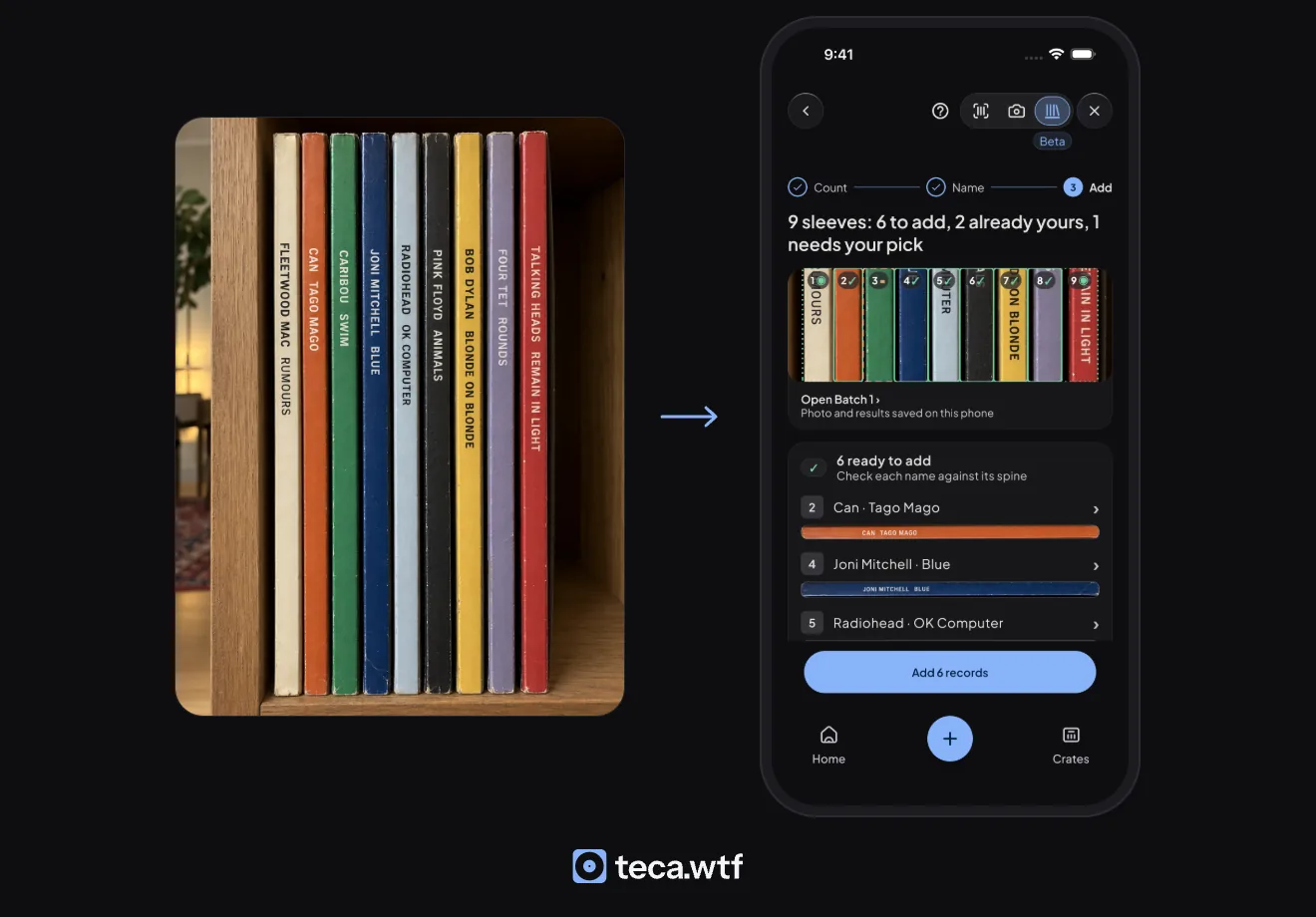
Photograph a shelf row and Teca reads every spine at once. The spine scanner is an Early Preview, so it shows a Beta label in the app and may not be on your phone yet.
Quick version
- On the Scan tab, tap Spines at the top right, next to Barcode and Sleeve.
- Stand 5 to 12 records upright, spines toward you. Fit the row between the two lines, hold the phone level and take the photo.
- Check the count. Tap to uncheck anything that isn’t a record, like a book, then tap Name these sleeves.
- Check each name against its spine, then tap Add. The batch goes into its own crate.
- Tap Scan the next batch, or Done scanning.
What each spine says
- Ready to add. Teca is confident. Check the name against the spine.
- Already yours. It is in your collection, so it isn’t added twice.
- In an earlier photo. Counted already in this session.
- Needs your pick. Open the batch and choose your pressing.
- Couldn’t name. Open the batch and search for it by name.
- Can’t read. Take a closer photo of that part of the row.
Only the ones marked ready go in when you tap Add. The rest wait in the batch as “still to sort”.
Getting a good photo
- Stand straight on, level with the row, so every spine is square to the camera.
- Dim shelf? Turn on the light. Too many in the frame? Teca says “Move closer”.
- Missing one? Tap Retake photo. Or use Choose from your photos for one you already took.
- Need the tips again? Tap the ? at the top of the camera.
After you add
- Its own crate. Each batch goes into a crate named Spine Scan: Batch 1, then 2, and so on. The records stay there until you sort them.
- Undo. Tap Undo to take the whole batch back out, or Remove beside one record.
- The photo. Teca saves the photo and results on your phone, so you can reopen a batch from the Shelf scans row in Crates.